
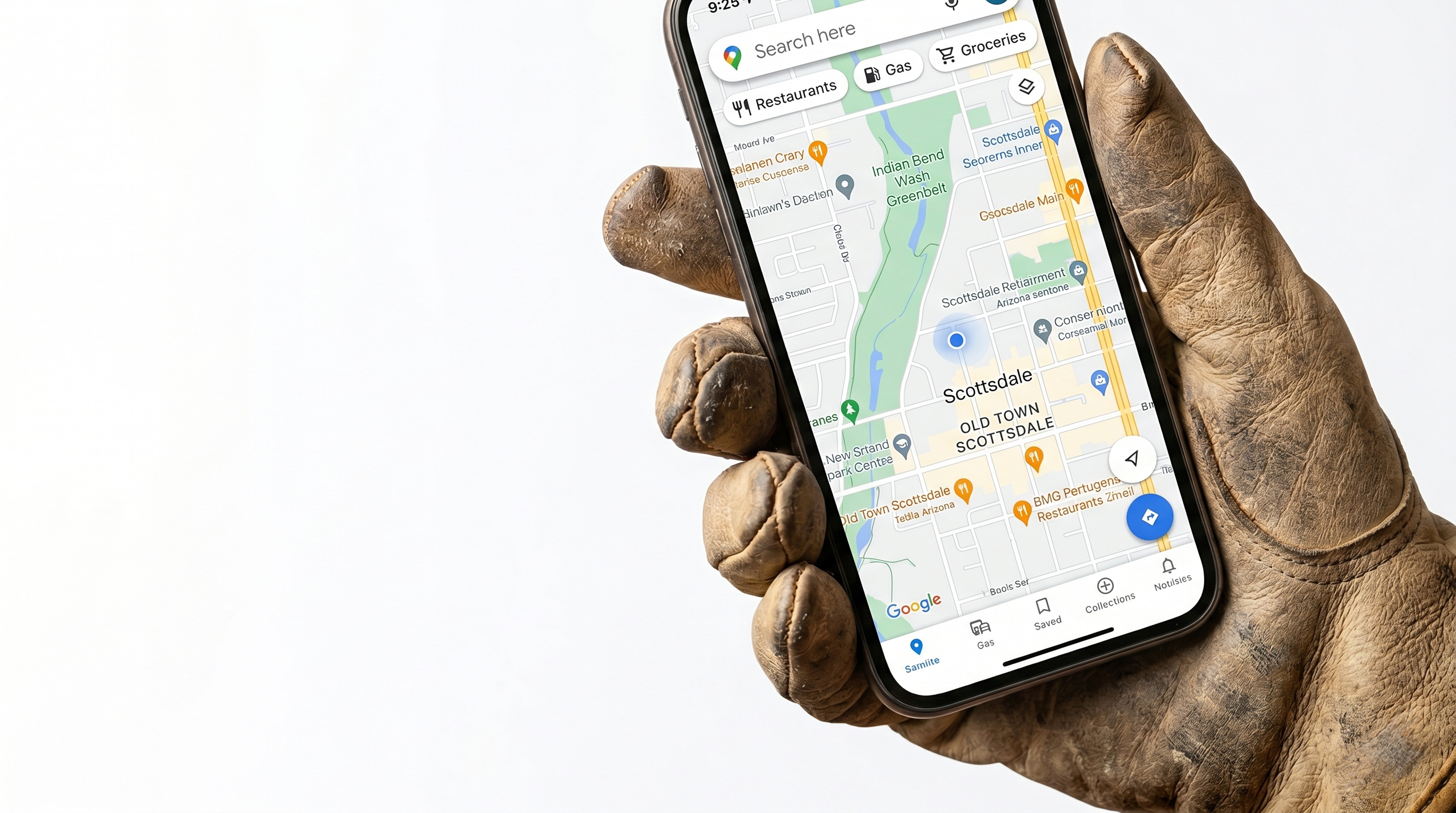
A free tutorial for landscapers, handymen, pool guys, and anyone else who's tired of watching the other guy get the call.
Here's the deal. You can pour money into Facebook ads, hand out yard signs, slap your number on the truck. None of it beats a Google Business Profile that's filled out right.
When somebody in Phoenix types "landscaper near me" or "pool service Ahwatukee" into their phone, Google shows three businesses on a map before anything else. That box is called the local pack. If you're in it, your phone rings. If you're not, it doesn't. Simple as that.
Setting it up is free. It takes about 30 minutes of real work, plus a few days waiting on verification. That's it.
This guide walks you through it step by step. No fluff, no upsells. If you'd rather have one platform handle your website, business phone, invoicing, and your Google profile in one place, that's what we built Homespace for — but you don't need Homespace to do any of this. The Google Business Profile is free and yours forever.
Let's go.
Before you start: have this stuff ready
Don't open the laptop until you have these in front of you. You'll waste 20 minutes hunting for them mid-setup otherwise.
- 01Business name. Exactly how you want it to show up. "Garcia Landscaping" not "garcia landscaping LLC dba phoenix lawn pros." Whatever's on your truck or your invoices.
- 02Phone number. The one you actually answer. Not your personal cell if you can avoid it. If you don't have a separate business line yet, get one. Customers calling your personal phone at 9pm on Sunday is how you burn out in year two.
- 03Service area. The cities, neighborhoods, or zip codes you actually work in. Don't say "all of Maricopa County" if you don't drive past Glendale. Google penalizes profiles that lie about coverage.
- 04Hours. When customers can reach you. Not when you're swinging a weed eater — when you'll pick up the phone or text back.
- 05Website. If you have one, great. If not, you should. Until you do, you can still set this up.
- 065 to 10 photos. Real work. Before/afters. Your truck with the logo. A clean install. Your crew. Skip stock photos. Google's getting better at flagging them and your customers can spot them instantly.
That's the kit. Now sit down.
Step 1: Sign in with the right Google account
Go to google.com/business and click "Manage now."
Sign in with a Google account you actually own and can keep forever. Not your kid's old Gmail. Not the address your nephew set up for you in 2019. If you don't have a good one, make a new one at google.com/accounts. Use an address like yourname@gmail.com or business@yourbusiness.com — something that survives if your wife gets a new phone or your bookkeeper quits.
This is the most common screw-up at this step: somebody sets up the profile on a Gmail their old assistant controls. Six months later they need to update the address and they're locked out. Use an account you control.
Step 2: Type your business name
Type it carefully. The way you type it here is how it shows up forever. You can edit it later but Google flags name changes for review and sometimes hides your profile while they look at it.
Don't keyword-stuff the name. "Garcia Landscaping Phoenix Best Lawn Care" is against Google's rules and they'll suspend you. Just put your business name. The ranking comes from the category and the rest of the profile, not from cramming words into the name.
If Google's autocomplete shows your business already exists in their system — somebody set up an unclaimed profile, or it got pulled from a directory — click it and follow the "claim this business" flow instead of making a duplicate.
Step 3: Pick a business type
Google asks how customers interact with you. Three options:
- 01Local store — they come to you (a brick-and-mortar shop).
- 02Service business — you go to them.
- 03Online retail — they buy from your website.
Pick service business if you're a landscaper, handyman, pool guy, mobile mechanic, anyone who drives to a customer. You can pick more than one if both apply (say, you have a shop and you do mobile work).
Step 4: Address vs. service area — pick the right one
This is where guys mess up.
If your "office" is your house, do not list your home address as a public business address. You don't want strangers showing up at your door looking for a quote. You don't want your address on Google Maps next to your kids' school.
Instead, when Google asks "do you want to add a location customers can visit?" — say no. Then you'll get the option to set a service area — the cities, zip codes, or neighborhoods where you work. That's the right answer for most trades.
Google still needs your real address for verification (they have to confirm you exist). They just won't show it publicly. It stays in their system.
If you have a real shop with a sign and a front door where customers walk in, then yes, list the address.
Step 5: Pick your primary category — this matters more than anything else
Your primary category is the single biggest factor in what searches you show up for. Pick it wrong and you're invisible no matter what else you do.
A few examples of correct primary categories:
- 01Landscaper — "Landscaper" if you do full design/install. "Lawn care service" if you mostly mow and maintain.
- 02Handyman — "Handyman" is the right one. Don't pick "general contractor" unless you actually pull permits.
- 03Pool service — "Swimming pool repair service" for repair, "Pool cleaning service" for maintenance routes. Pick the one that matches the majority of your revenue.
You can add secondary categories later — and you should. A landscaper who also does irrigation should add "Irrigation equipment supplier." A handyman who installs water heaters can add "Plumber." Add up to 9 secondaries, but only ones that are honestly part of your work. Lying gets you suspended.
The rule: primary = your single biggest revenue line. Secondaries = the other things you actually do.
Step 6: Phone number and website
Phone number: the one you answer. Same number every customer-facing place — your truck, your invoices, your Yelp page, your Nextdoor profile. Google ranks "NAP consistency" — Name, Address, Phone — across the web. Different numbers in different places confuse Google and drop your ranking.
Website: paste your URL. If you don't have one, Google will offer to make you a free one-page site. Their free site is fine to start. It's not great. But it's better than nothing for SEO and you can replace it later.
Step 7: Verify your business
You can't show up in search results until Google confirms you exist. Three ways they do this:
1. Video verification. Most common in 2026 for service businesses. You record a 30 to 60 second video on your phone showing: your truck with your logo, your tools, the front of your house or shop, and any signage. Show, don't tell. The video doesn't need narration. Google's reviewers want to see proof the business is real. Most videos get approved in 1 to 3 business days.
2. Postcard. Google mails a postcard with a code to your address. Takes 5 to 14 days. Slower, but it works.
3. Instant verification. If your website is already verified in Google Search Console, you may see this option. Click it and you're done in 30 seconds. Most trade businesses don't have Search Console set up, so don't worry if you don't see this.
Do not edit anything else on your profile while verification is pending. Google flags edits during review and it slows you down.
Step 8: After verification — fill in everything
This is where most guys quit. Don't.
A half-filled profile loses to a fully-filled profile every time. Go back through and do all of this:
- 01Business description (750 characters). Write it like a customer asked you "what do you do?" at a barbecue. Mention what you do, where you work, and how long you've been doing it. Don't keyword-stuff. Don't write "we are passionate about delivering excellence." Write the way you talk.
- 02Services. List every service with a short description and a starting price if you can. Customers filter on this.
- 03Service areas. Add every city or zip you actually work in.
- 04Hours. Including special hours for holidays.
- 05Photos. Upload at least 10. Add new ones every month. Profiles with fresh photos rank better.
- 06Logo and cover photo. Cover is 1024 x 576 pixels. A clean shot of your truck or a finished job works.
- 07Attributes. Check the boxes that apply — "veteran-owned," "family-owned," "bilingual staff," "online estimates available." Some customers filter on these.
- 08Opening date. Add the year you started. Google shows "X years in business" on profiles that have it. Trust signal.
Step 9: Reviews — the part that actually moves rankings
A complete profile gets you on the board. Reviews are what move you up the board.
After every job, send the customer a one-line text: "Hey [name], thanks again for the work today. If you've got 30 seconds, would you leave us a quick Google review? Here's the link: [your review link]."
Get your review link from your Google Business Profile dashboard. The link goes straight to the review form so they don't have to hunt for you.
Aim for one review per week minimum in your first 90 days. Respond to every review — good and bad — within 48 hours. Two sentences each. "Thanks Maria, glad the irrigation timer is dialed in. Call us anytime." That's it. Don't write paragraphs. Don't get into fights over bad ones — respond once, calmly, and move on.
Reviews are the single biggest lever after category selection. A landscaper with 47 reviews beats a landscaper with 8 reviews 9 times out of 10, even if the 8-review guy does better work.
Step 10: Post weekly
Google Business Profile has a "posts" feature most trade businesses ignore. It's a small box where you can put updates — finished jobs, weekly specials, before/afters, seasonal reminders. Posts roll off after 7 days, so post once a week.
This signals to Google that your profile is active. Active profiles rank higher. It takes 5 minutes.
What to do this month
1. Today: set up the profile. Get to the verification step. 2. This week: finish verification. Fill in everything in Step 8. 3. Every job from now on: ask for a review. 4. Every Monday: post one update.
That's the whole playbook. Free. Yours.
A note on doing all this
If you're a one-truck operation, doing this on top of running your business is a lot. The Google profile is one piece. You also need a real website, a business phone, invoicing, scheduling, and a way to take payments without paying 3% to Square every time.
That's what Homespace is. One platform, $49 a month, set up in under an hour. Right now we're waiving the $999 setup fee for Phoenix landscapers, handymen, and pool service operators through our Launch Program.
If that's useful, start here. If it's not, this guide is still yours. Go set up your profile and start getting found.
Homespace turns tradesmen into businesses. Website, phone, email, invoicing, scheduling, payments, mobile app. $49/month. Built in Phoenix.